 Article Formatter
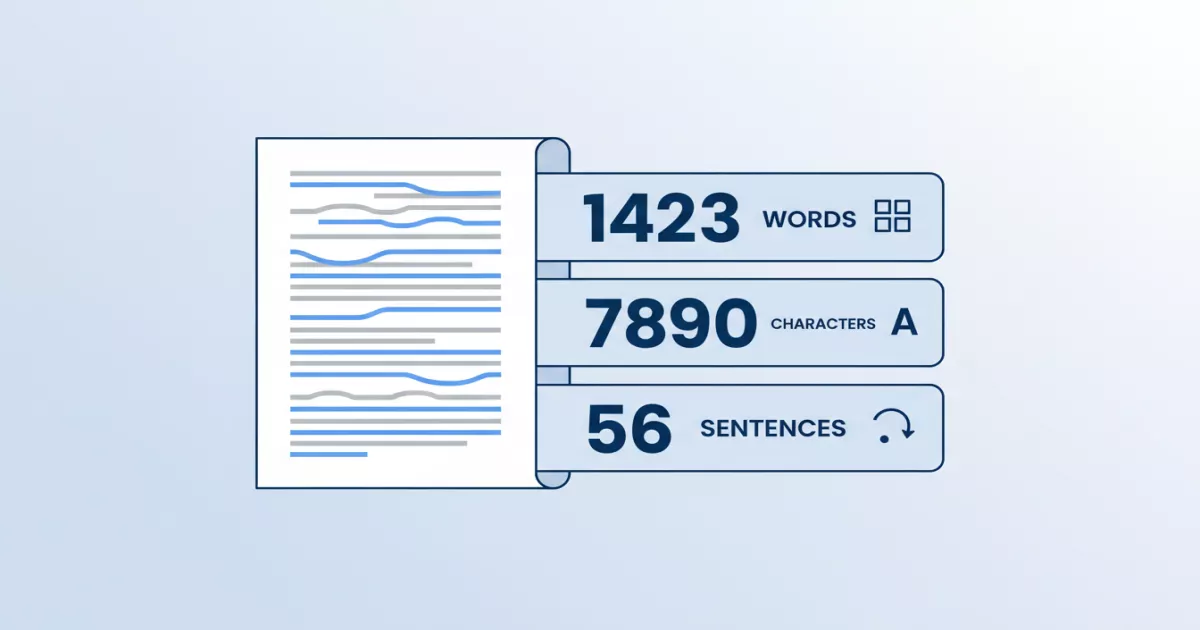
You need to know how many words are in your text. Maybe you're writing a blog post and the brief says 1,500 words. Maybe you're crafting a tweet and need to stay under the character limit. Maybe you're a student checking an essay against a word count requirement, or a developer building a form that caps user input at 500 characters.
Word counting sounds simple until you think about it. What counts as a word? Do hyphenated terms count as one or two? Does a URL count as one word? What about CJK (Chinese, Japanese, Korean) text where there are no spaces between words? This guide covers every method - from the fastest (paste into a tool) to the most customizable (write your own counter).
The Quick Way: Use a Browser Tool
If you just need a word count right now, the fastest option is a browser-based counter. Paste your text, see the numbers instantly.
The Word Counter tool gives you words, characters (with and without spaces), sentences, paragraphs, and estimated reading time all at once. It runs entirely in your browser - nothing gets sent to a server, so it's safe for confidential documents.
Quick steps:
- Go to articleformatter.com/word-count
- Paste your text into the input area (or type directly)
- See word count, character count, sentences, paragraphs, and reading time instantly
- Copy the stats or keep writing - counts update in real time
This is the same approach used by most online word counters, but with the advantage that your text never leaves your machine. Useful when you're working with client documents, legal text, or anything you don't want uploaded to third-party servers.
Word Processors: Built-In Counts
If your text is already in a word processor, you don't need an external tool. Every major word processor has word count built in.
Microsoft Word
Word shows the word count in the status bar at the bottom left. Click it to open a dialog with pages, words, characters (with and without spaces), paragraphs, and lines. You can also reach this through Review > Word Count or the shortcut Ctrl+Shift+G (Windows) / Cmd+Shift+G (Mac).
To count words in a specific section, select the text first. The status bar updates to show "X of Y words" for your selection.
Google Docs
Go to Tools > Word count or press Ctrl+Shift+C (Windows) / Cmd+Shift+C (Mac). Google Docs shows pages, words, characters, and characters excluding spaces. Check the "Display word count while typing" box to keep a persistent counter visible in the bottom left corner.
VS Code and other editors
Most code editors don't show word counts by default, but extensions are available. In VS Code, search the marketplace for "Word Count" - there are several options that add a word/character count to the status bar. Sublime Text has a built-in character count when you select text (shown in the status bar), and WordCount plugins add word counting.
JavaScript: Count Words Programmatically
When you need to count words inside a web application - form validation, content previews, writing tools - JavaScript is the way to go.
Basic word count
function countWords(text) {
  const trimmed = text.trim();
  if (trimmed === '') return 0;
  return trimmed.split(/\s+/).length;
}

countWords('Hello world');       // 2
countWords('  Hello   world  '); // 2
countWords('');                  // 0
This splits on one or more whitespace characters (\s+), which handles multiple spaces, tabs, and newlines. The trim() call prevents empty strings at the start and end from being counted as words.
Character count (with and without spaces)
function countCharacters(text) {
  return {
    withSpaces: text.length,
    withoutSpaces: text.replace(/\s/g, '').length
  };
}

countCharacters('Hello world');
// { withSpaces: 11, withoutSpaces: 10 }
Sentence count
function countSentences(text) {
  const trimmed = text.trim();
  if (trimmed === '') return 0;
  // Match sentence-ending punctuation followed by space or end of string
  const sentences = trimmed.split(/[.!?]+\s*/);
  // Filter out empty strings from trailing punctuation
  return sentences.filter(s => s.trim().length > 0).length;
}

countSentences('Hello world. How are you? Fine!'); // 3
countSentences('Dr. Smith went home.');             // 1 (imperfect - see note)
Note: Sentence counting is tricky because periods appear in abbreviations (Dr., U.S., etc.), decimal numbers (3.14), URLs, and ellipses (...). Simple regex splitting will overcount. For production use, consider a natural language processing library like compromise or nlp.js that handles these edge cases.
Reading time estimate
function readingTime(text, wordsPerMinute = 200) {
  const words = countWords(text);
  const minutes = Math.ceil(words / wordsPerMinute);
  return minutes;
}

// 1500-word article at 200 WPM = 8 minutes
readingTime('...1500 words of text...'); // 8
The standard estimate is 200-250 words per minute for adult readers. Medium and most blog platforms use 200 WPM. Some sites use 265 WPM (based on research by Marc Brysbaert). Pick one and be consistent.
Complete text statistics function
Here's a single function that returns everything at once, similar to what the Word Counter tool computes:
function textStats(text) {
  const trimmed = text.trim();
  const words = trimmed === '' ? 0 : trimmed.split(/\s+/).length;
  const chars = text.length;
  const charsNoSpaces = text.replace(/\s/g, '').length;
  const paragraphs = trimmed === '' ? 0 :
    trimmed.split(/\n\s*\n/).filter(p => p.trim()).length;
  const sentences = trimmed === '' ? 0 :
    trimmed.split(/[.!?]+\s*/).filter(s => s.trim()).length;
  const readingMinutes = Math.ceil(words / 200);

  return {
    words,
    characters: chars,
    charactersNoSpaces: charsNoSpaces,
    sentences,
    paragraphs,
    readingTime: readingMinutes + ' min'
  };
}
Python: Count Words in Scripts and Data Pipelines
Python makes word counting straightforward, whether you're processing a single string or millions of documents.
Basic word count
text = "Hello world. This is a test."

# Method 1: split() (simplest)
word_count = len(text.split())  # 6

# Method 2: regex (more control)
import re
words = re.findall(r'\b\w+\b', text)
word_count = len(words)  # 6

# Method 3: collections.Counter (word frequency)
from collections import Counter
word_freq = Counter(text.lower().split())
# Counter({'hello': 1, 'world.': 1, 'this': 1, ...})
The split() method with no arguments splits on any whitespace and ignores leading/trailing whitespace. It's the Python equivalent of JavaScript's trim().split(/\s+/).
Character count
text = "Hello world"

chars_with_spaces = len(text)                    # 11
chars_without_spaces = len(text.replace(" ", "")) # 10

# For all whitespace (tabs, newlines too):
import re
chars_no_whitespace = len(re.sub(r'\s', '', text))  # 10
Count words in a file
# Count words in a text file
with open('document.txt', 'r') as f:
    text = f.read()
    word_count = len(text.split())
    print(f"Words: {word_count}")

# Count words in multiple files
import glob

for filepath in glob.glob('*.txt'):
    with open(filepath) as f:
        words = len(f.read().split())
    print(f"{filepath}: {words} words")
Full text statistics
import re
import math

def text_stats(text):
    words = len(text.split()) if text.strip() else 0
    chars = len(text)
    chars_no_spaces = len(re.sub(r'\s', '', text))
    sentences = len(re.split(r'[.!?]+', text.strip())) - 1 if text.strip() else 0
    paragraphs = len([p for p in text.split('\n\n') if p.strip()]) if text.strip() else 0
    reading_time = math.ceil(words / 200) if words else 0

    return {
        'words': words,
        'characters': chars,
        'characters_no_spaces': chars_no_spaces,
        'sentences': max(sentences, 0),
        'paragraphs': paragraphs,
        'reading_time_minutes': reading_time
    }

stats = text_stats("Hello world. This is a test.\n\nNew paragraph here.")
# {'words': 9, 'characters': 49, 'characters_no_spaces': 40,
#  'sentences': 3, 'paragraphs': 2, 'reading_time_minutes': 1}
Command-Line Methods
When you're working in a terminal, these one-liners count words without needing to open any application.
wc (word count)
The wc command is built into every Unix-like system (Linux, macOS, WSL). It's the original word counter.
# Count lines, words, and characters in a file
wc document.txt
#   42  350  2100 document.txt
# (lines, words, bytes)

# Word count only
wc -w document.txt
# 350 document.txt

# Character count (multibyte-aware)
wc -m document.txt
# 2100 document.txt

# Line count only
wc -l document.txt
# 42 document.txt

# Count words in multiple files
wc -w *.txt
#  350 chapter1.txt
#  420 chapter2.txt
#  770 total

# Count words from clipboard (macOS)
pbpaste | wc -w

# Count words from clipboard (Linux with xclip)
xclip -selection clipboard -o | wc -w
A subtle point: wc -c counts bytes, not characters. For ASCII text they're the same, but for Unicode text (accented characters, emoji, CJK), use wc -m instead to get the actual character count.
Counting words in specific parts of a file
# Count words in lines containing "error"
grep "error" logfile.txt | wc -w

# Count unique words in a file
tr -s '[:space:]' '\n' < document.txt | sort -u | wc -l

# Word frequency count (most common words)
tr -s '[:space:]' '\n' < document.txt | sort | uniq -c | sort -rn | head -20

# Count words in a specific section (lines 10-50)
sed -n '10,50p' document.txt | wc -w
PowerShell (Windows)
# Word count
(Get-Content document.txt | Measure-Object -Word).Words

# Character count
(Get-Content document.txt | Measure-Object -Character).Characters

# Line count
(Get-Content document.txt | Measure-Object -Line).Lines

# All at once
Get-Content document.txt | Measure-Object -Word -Character -Line
Edge Cases and Gotchas
Word counting seems simple, but the edge cases are where implementations diverge. Here's what to watch for.
Hyphenated words
"Well-known" - is that one word or two? Microsoft Word counts it as one. Google Docs counts it as one. The wc command counts it as one (no whitespace between them). Most web-based counters count it as one. If you're splitting on whitespace, hyphenated words are one word. If you're splitting on word boundaries (\b\w+\b), they become two.
Contractions
"Don't" is one word when splitting on whitespace, but two tokens when splitting on word boundaries (don and t). For user-facing word counts, whitespace splitting gives the expected result. For NLP tokenization, you might want the finer-grained split.
URLs and email addresses
"Visit https://example.com/path/to/page today" - is the URL one word or five? Whitespace splitting counts it as one, which makes sense for most purposes. Word boundary splitting would break it into many fragments.
Numbers and special characters
"The price is $42.50" has five words when splitting on whitespace: "The", "price", "is", "$42.50". The dollar sign stays attached. If you need to separate currency symbols, you'll need more specific parsing.
CJK text (Chinese, Japanese, Korean)
These languages don't use spaces between words. A string of Chinese characters with no spaces has zero words by whitespace splitting, but potentially dozens of actual words. Counting CJK words requires a tokenizer like jieba (Chinese), MeCab (Japanese), or KoNLPy (Korean). For character counts, CJK works normally.
Unicode characters and emoji
JavaScript's .length property counts UTF-16 code units, not characters. An emoji like a flag emoji is 4 code units (length 4) but visually one character. For accurate character counts with emoji and complex Unicode, use [...text].length (spread into an array) or the Intl.Segmenter API.
Character Limits: Common Platforms
One of the most practical reasons to count characters is staying within platform limits. Here's a quick reference:
| Platform | Limit | What Counts |
|---|---|---|
| Twitter / X | 280 characters | All characters including spaces. URLs count as 23 chars regardless of length. |
| SMS | 160 characters | GSM-7 encoding. Some characters (curly quotes, emoji) switch to UCS-2, dropping limit to 70. |
| Meta title tag | ~60 characters | Google truncates around 60 chars. Aim for 50-60. |
| Meta description | ~155 characters | Google truncates around 155-160 chars. Keep under 155 for safety. |
| LinkedIn post | 3,000 characters | Only first ~140 chars show before "see more". |
| Instagram caption | 2,200 characters | Truncated at 125 chars in the feed. |
| YouTube title | 100 characters | Shows about 70 chars in search results. |
When you're writing for any of these platforms, the Word Counter shows your character count in real time so you can stay within limits as you write.
Method Comparison
| Method | Words | Characters | Sentences | Best For |
|---|---|---|---|---|
| Browser tool | Yes | Yes | Yes | Quick checks, no install needed |
| Word / Docs | Yes | Yes | No | Already working in a word processor |
| wc command | Yes | Yes | No | Terminal workflows, shell scripts |
| JavaScript | Yes | Yes | Yes | Web apps, form validation |
| Python | Yes | Yes | Yes | Data pipelines, batch processing |
| PowerShell | Yes | Yes | No | Windows environments |
Real-World Use Cases
Here are the situations where word and character counting comes up most often and which approach fits each one best.
Meeting content requirements. Blog posts, essays, grant applications, and academic papers all have word count requirements. Paste your draft into the Word Counter or check your word processor's built-in count. For ongoing writing, keep the count visible so you can track your progress as you go.
Social media character limits. Drafting tweets, LinkedIn posts, or Instagram captions where every character matters. Write in a tool that shows real-time character counts, then copy the final text to the platform. Much easier than trial-and-error posting.
Form validation in web apps. "Bio must be under 500 characters" or "Review must be at least 50 words." JavaScript character and word counting lets you show live feedback as users type, preventing frustrating form submissions that get rejected.
SEO optimization. Title tags should be under 60 characters, meta descriptions under 155. Checking these limits during content creation prevents Google from truncating your titles in search results. If you're cleaning up text for SEO, the Article Formatter can help fix encoding and formatting issues before you publish.
Reading time estimates. Adding "5 min read" to blog posts helps readers decide whether to commit. Divide word count by 200 and round up. Most blogging platforms can compute this automatically, but it's easy to add to any site with a few lines of JavaScript.
Frequently Asked Questions
What counts as a word?
Do spaces count as characters?
How do I count words in a PDF?
pdftotext then pipe to wc -w. Python's PyPDF2 or pdfplumber libraries can also extract and count text programmatically.
What is the average reading speed?
Related Tools
Word Counter
Count words, characters, sentences, paragraphs, and reading time instantly in your browser.
Article Formatter
Clean up and format text from any source - fix line breaks, spacing, and encoding issues.
Text Case Converter
Convert text between uppercase, lowercase, title case, and sentence case.
Remove Duplicate Lines
Deduplicate text files, CSV data, and log files with one click.