 Article Formatter
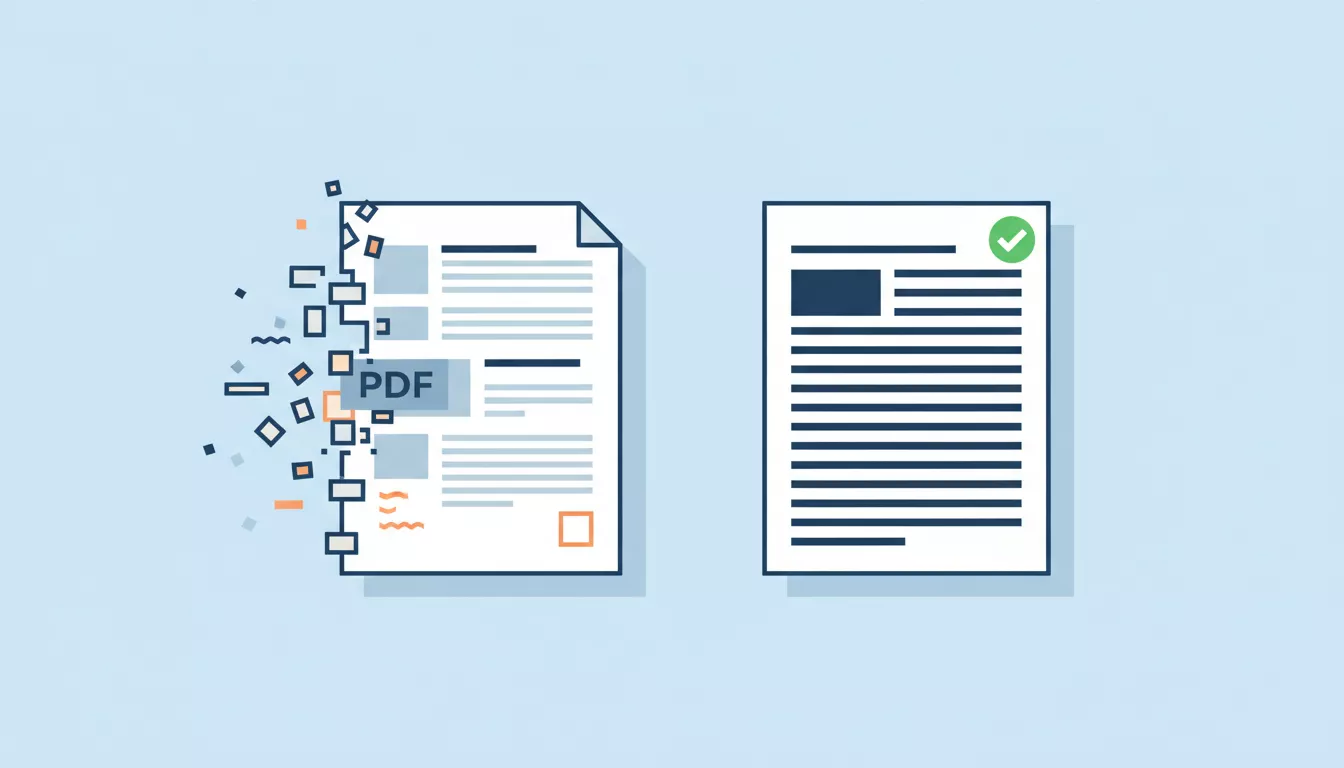
You copy a paragraph from a PDF, paste it into an email or a document, and the result is a mess. Every line ends with a hard break. Words are split in half. There are random double spaces everywhere. Sometimes whole characters are missing or replaced with squares and symbols.
This happens because PDFs weren't built for copying text. They were designed for printing - placing characters at exact coordinates on a page, like a typesetter arranging metal blocks. When your computer tries to extract that visual layout as flowing text, things break. But the fix is usually straightforward once you know what's going on.
Why PDF Text Comes Out Broken
A Word document stores text as a continuous stream of characters with formatting instructions - "this is paragraph one, it's 14pt Times New Roman, left-aligned." The software reflows it for whatever screen or paper you're using.
A PDF works completely differently. It stores instructions like "draw the letter H at position (72, 680), draw the letter e at position (79, 680)." There's no concept of "paragraph" or "sentence" in the file format itself. The visual appearance of flowing text is an illusion created by precise character positioning.
When you hit Ctrl+C on a PDF, your PDF reader has to reverse-engineer the text flow from those coordinates. It looks at which characters are close together horizontally (probably the same word), where large vertical gaps appear (probably a new line), and where extra-large gaps exist (probably a new paragraph). This reconstruction is never perfect, and different PDF readers handle it differently.
The Five Most Common Problems
Almost every "bad PDF paste" falls into one of these categories. Knowing which one you're dealing with tells you exactly how to fix it.
1. Hard line breaks mid-sentence
The most common problem by far. Your PDF has a line that wraps at 65 characters, so when you paste it, every line ends with a forced break - even in the middle of sentences. A paragraph becomes 8 separate lines instead of flowing text.
The quarterly report shows that revenue
increased by 12% compared to the previous
fiscal year, driven primarily by strong
performance in the digital services sector.
2. Extra spaces and inconsistent spacing
PDFs that use justified text alignment add extra space between words to make both margins even. When copied, those visual spaces become actual space characters - sometimes two or three between words.
The  company   announced  its  plans  to
expand   operations   into   three   new
markets   during   the   coming   quarter.
3. Hyphenated words split across lines
When a PDF hyphenates a word at the end of a line (like "environ-" on one line and "ment" on the next), the copy often preserves the hyphen and the line break. You end up with "environ-\nment" in your pasted text - a fragment that spellcheck flags and search can't find.
The environmental impact assess-
ment concluded that the proposed develop-
ment would have minimal effect on sur-
rounding ecosystems.
4. Missing or garbled characters
Some PDFs use embedded font subsets with custom character maps. The letter "f" in the PDF's internal encoding might map to a completely different Unicode character. You paste and get boxes, question marks, or wrong letters scattered through otherwise normal text.
e quarterly report shows revenue of $4.2M
for scal year 2025, represozng a 15%
increase over the previous year.
5. Headers and footers mixed into body text
When you select a full page of PDF text, headers, footers, and page numbers come along for the ride. They appear inline with your paragraph text, usually at awkward positions where page breaks occurred in the original.
performance in Q3 was stronger than expected.
ACME Corp - Confidential                    Page 12
Revenue growth accelerated in October due to
The Fastest Fix: Article Formatter
For most PDF text problems, the quickest solution is to paste into Article Formatter and click Format. It handles the three biggest issues automatically:
- Joins broken lines - Removes hard line breaks that fall mid-sentence while preserving actual paragraph breaks
- Normalizes spacing - Collapses multiple spaces down to single spaces
- Fixes encoding issues - Converts garbled Windows-1252 characters back to their correct UTF-8 equivalents
The whole process takes about 10 seconds. Paste your messy PDF text, click Format, copy the clean result. No account needed, nothing gets sent to a server - the formatting happens entirely in your browser.
Quick steps:
- Copy text from your PDF (Ctrl+A then Ctrl+C for the whole page, or select a section)
- Go to articleformatter.com
- Paste into the text area
- Click Format
- Copy the cleaned result
Manual Methods (When You Need More Control)
Sometimes you need a specific fix or want to clean up text as part of a larger workflow. Here are the manual approaches for each problem type.
Fixing line breaks in a text editor
Most text editors have find-and-replace with regex support. The trick is replacing single newlines (mid-sentence breaks) with spaces while keeping double newlines (paragraph breaks) intact.
In VS Code or Sublime Text (with regex enabled):
Find: (?
This regex matches a newline that isn't preceded by another newline and isn't followed by another newline - in other words, a single line break. It replaces it with a space, joining the broken lines back together. Double newlines (paragraph separators) are left alone.
In Google Docs:
Google Docs doesn't support regex in find-and-replace, so the process is more manual. Paste your text, then use Edit > Find and Replace. Search for the paragraph mark (you can't type it directly, but you can copy a line break from the document and paste it into the search field). Replace with a space. Then manually re-add paragraph breaks where they belong.
Fixing extra spaces
Multiple spaces between words are easy to fix with find-and-replace. Search for two spaces and replace with one. Repeat until no more double spaces remain. Or use regex:
Find: [ ]{2,}
Replace: [space]
This collapses any run of 2+ spaces into a single space in one pass. For a deeper look at every method for removing extra spaces - including JavaScript, Python, non-breaking spaces, and command-line tools - see the full guide to removing extra spaces from text.
Fixing hyphenated words
For hyphens at line breaks, search for a hyphen followed by a newline and replace with nothing - this rejoins the word:
Find: -\n
Replace: [empty]
Be careful with this one. It works perfectly for words like "environ-\nment" becoming "environment," but it'll also join intentionally hyphenated words that happen to fall at a line break. Read through the result to check for words that got incorrectly merged.
Command-Line Tools for Better PDF Text Extraction
If you deal with PDFs regularly, there are tools that extract text more cleanly than copy-paste does. They analyze the PDF's internal structure rather than scraping the rendered view.
pdftotext (Linux/Mac)
Part of the poppler-utils package. It reads the PDF's internal text streams directly, which usually produces cleaner output than clipboard copying.
# Basic extraction
pdftotext document.pdf output.txt
# Preserve layout (keeps columns, tables)
pdftotext -layout document.pdf output.txt
# Extract just pages 5-10
pdftotext -f 5 -l 10 document.pdf output.txt
# Output to stdout (pipe to other tools)
pdftotext document.pdf -
Install it on Ubuntu/Debian with sudo apt install poppler-utils. On Mac, use brew install poppler.
Python: pdfplumber
For more control, the Python pdfplumber library gives you access to character-level positioning data, making it possible to reconstruct paragraphs intelligently.
import pdfplumber
import re
with pdfplumber.open("document.pdf") as pdf:
for page in pdf.pages:
text = page.extract_text()
# Join broken lines
text = re.sub(r'(?<!\n)\n(?!\n)', ' ', text)
# Fix double spaces
text = re.sub(r' {2,}', ' ', text)
print(text)
Install with pip install pdfplumber. It handles tables, multi-column layouts, and cropped regions better than most alternatives.
Scanned PDFs: A Different Problem Entirely
Everything above assumes your PDF contains actual text data. But some PDFs are just images of text - scanned documents, photos of pages, or PDFs exported from certain older systems. When you try to copy text from these, you either get nothing at all, or you get a jumble of random characters from a failed OCR attempt.
You can tell the difference by trying to select individual words. If you can highlight word by word, the PDF has real text. If the selection covers a rectangular block regardless of word boundaries, it's a scanned image.
For scanned PDFs, you need OCR (Optical Character Recognition) to convert the image to text first. Free options include:
- Google Drive - Upload the PDF to Google Drive, then open it with Google Docs. Google runs OCR automatically and gives you an editable document.
- Tesseract - Open-source OCR engine. Run
tesseract input.png output on the command line. Best results with high-resolution, clean scans. - Adobe Acrobat - The "Recognize Text" feature runs OCR and creates a searchable PDF layer. Paid software, but very accurate.
After OCR, you'll still need to clean up the extracted text - OCR output tends to have its own quirks, like confusing "l" with "1", "O" with "0", or dropping punctuation. Paste the OCR output into Article Formatter to fix the line break and spacing issues, then proofread for character recognition errors.
Tips for Cleaner PDF Copies
A few habits can reduce the cleanup work before you even paste:
1 Use a good PDF reader. Adobe Acrobat Reader generally copies text more cleanly than browser-based PDF viewers. Chrome's built-in viewer is decent but sometimes introduces extra spaces. Preview on Mac tends to handle line breaks better than most.
2 Copy smaller sections. Instead of selecting an entire page, copy one or two paragraphs at a time. This avoids pulling in headers, footers, and page numbers that break up your text.
3 Check if the source has an alternative format. Many reports and papers are available as both PDF and HTML or DOCX. Government documents, academic papers (try the publisher's website), and corporate reports often have a non-PDF version that copies cleanly.
4 Try "Save as Text" if available. Some PDF readers (including Adobe Acrobat) let you save the document as a plain text file. This often produces better results than copy-paste because the software has more context about the document structure.
Multi-Column PDFs
Two-column layouts (common in academic papers and newsletters) are especially tricky. When you copy text from a two-column PDF, the copied text often interleaves lines from both columns:
The experiment showed that Results were consistent
participants preferred the across all three trial
simpler interface design, groups, with a margin
achieving task completion of error below 2%.
This happens because the PDF reader scans left to right across the full page width, grabbing text from both columns on the same line. The fix depends on the tool you're using:
- Manual selection: Carefully select just one column at a time. In Adobe Reader, hold Alt while dragging to select a rectangular region.
- pdftotext with -layout: The
-layout flag preserves the spatial arrangement, making it easier to separate columns afterward. - pdfplumber: You can define crop regions to extract each column separately:
page.within_bbox((0, 0, page.width/2, page.height)) for the left column.
When Nothing Works
Some PDFs are genuinely impossible to copy text from cleanly. Heavily designed documents with text baked into graphics, PDFs with DRM restrictions that prevent copying, and very old PDFs with non-standard encodings can all resist extraction.
In these cases, your options are:
- Contact the source. Ask for the content in another format. Most authors or organizations will provide an alternative if asked.
- Screenshot and OCR. Take a screenshot of the PDF page, then run it through Google Drive or Tesseract OCR. This bypasses the PDF's internal encoding entirely.
- Manual retyping. For short passages, it's sometimes faster to just type it out. Use the Word Counter to track your progress as you go.
Frequently Asked Questions
Why does text copied from a PDF have weird line breaks?
PDFs store text as positioned characters on a canvas, not as flowing paragraphs. When you copy, your system grabs each line as it appears on the page and adds a hard line break at the end. A sentence that wraps across two lines in the PDF becomes two separate lines in your clipboard.
How do I remove line breaks without losing paragraphs?
The trick is distinguishing mid-paragraph line breaks (unwanted) from paragraph breaks (wanted). In Article Formatter, this happens automatically. Manually, use regex find-and-replace: search for a single newline not surrounded by other newlines and replace with a space.
Why do some PDFs produce garbled characters?
Some PDFs use custom font encodings where internal character codes don't map to standard Unicode. Copying tries to translate those codes and gets it wrong, producing symbols or wrong letters. Scanned PDFs with poor OCR can also produce garbled output. Re-running OCR or trying a different extraction tool usually helps.
Can I fix PDF text issues in bulk?
Yes. For a few pages, Article Formatter handles it fast. For entire documents, command-line tools like pdftotext produce cleaner output than clipboard copying. Python libraries like pdfplumber give you programmatic control over extraction.
Related Tools
Article Formatter
Paste messy PDF text and get clean, properly formatted output in seconds.
Remove Duplicate Lines
Strip out repeated lines that sometimes appear when copying from multi-page PDFs.
HTML to Plain Text
Convert HTML content to clean plain text. Useful after extracting from online PDF viewers.
Windows-1252 vs UTF-8
Understand why special characters get garbled and how encoding mismatches affect your text.