 Article Formatter
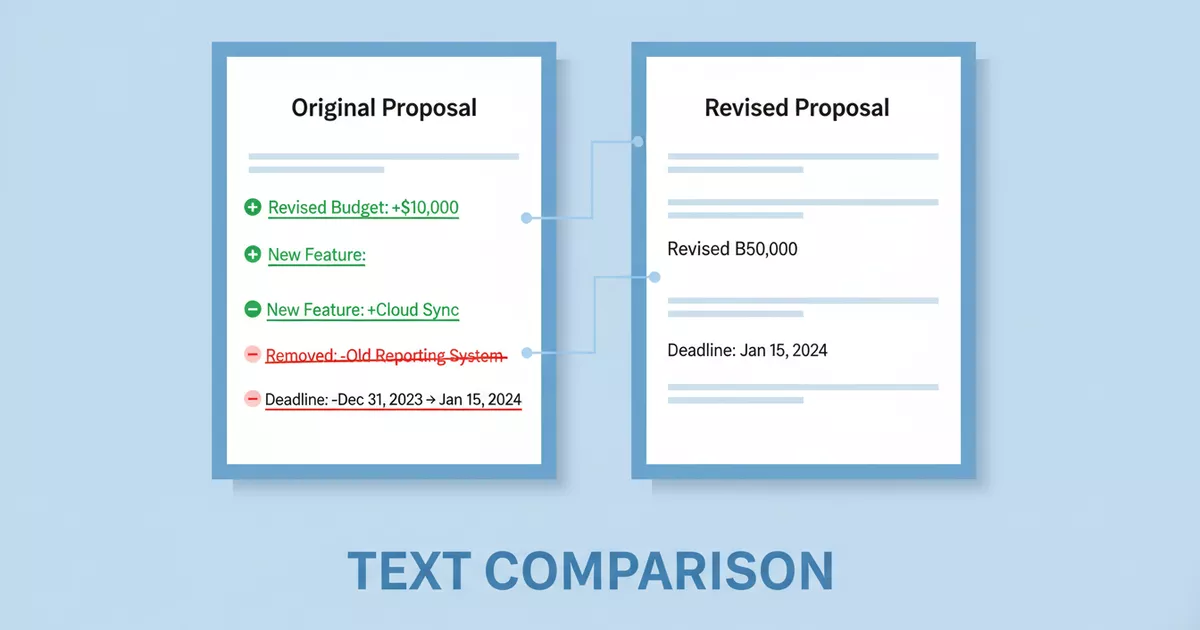
You have two versions of something - a contract, a config file, a blog post draft, a dataset - and you need to know exactly what changed. Reading both versions side by side and hoping your eyes catch every difference is slow, unreliable, and painful. Text comparison tools exist to solve this problem, and they've been around since the 1970s.
Whether you're reviewing edits from a colleague, debugging a broken config, or verifying that a data export hasn't changed, there's a method that fits your workflow. This guide covers all of them - from the fastest (paste into a browser tool) to the most flexible (write your own diff in Python).
The Quick Way: Use a Browser-Based Diff Tool
When you just need to compare two pieces of text right now, a browser tool is the fastest option. No installation, no command line, no code. Paste both versions, hit compare, and you see every difference highlighted.
The Text Diff Checker uses the Myers diff algorithm (the same one Git uses) to find the longest common subsequence between your two texts. It then highlights every line that was added, removed, or stayed the same. You get stats at the top showing the count of additions, deletions, and unchanged lines.
Quick steps:
- Go to articleformatter.com/text-diff
- Paste the original text on the left, modified text on the right
- Toggle options: ignore case, trim whitespace, or skip blank lines
- Click Compare (or press Ctrl+Enter)
- Review the color-coded diff output - green for added lines, red for removed
Everything runs in your browser. Your text never gets uploaded to any server, which matters when you're comparing contracts, internal documents, API keys, or anything sensitive.
Command Line: The diff Utility
The diff command has been a standard Unix tool since 1974. It compares two files line by line and outputs the differences. If you work in a terminal at all, this is worth knowing.
Basic usage
diff original.txt modified.txtThis gives you the default output format, which shows line numbers and angle brackets. It's functional but hard to read. The unified format is much better:
diff -u original.txt modified.txt
Unified diff prefixes removed lines with - and added lines with +. It also shows a few lines of context around each change so you can orient yourself. This is the format Git uses, and most developers are familiar with it.
Useful flags
| Flag | What it does |
|---|---|
| -u | Unified format (most readable) |
| -i | Ignore case differences |
| -w | Ignore all whitespace |
| -B | Ignore blank line changes |
| -r | Recursively compare directories |
| -y | Side-by-side output |
| --color | Color-coded output (GNU diff) |
Comparing strings directly
You don't need actual files on disk. Bash process substitution lets you compare output from any command or even paste text inline:
# Compare output of two commands
diff -u <(curl -s https://api.example.com/v1) <(curl -s https://api.example.com/v2)

# Compare two strings
diff -u <(echo "hello world") <(echo "hello there")
Windows alternatives
Windows doesn't include Unix diff, but it has its own tools. fc (File Compare) works in Command Prompt:
fc original.txt modified.txt
In PowerShell, Compare-Object gives you more control:
Compare-Object (Get-Content original.txt) (Get-Content modified.txt)If you install Git for Windows, you get the full Unix diff command in Git Bash along with many other useful tools.
Git: Built-in Diffing for Code
If you use Git, you already have one of the best diff tools available. Git's diff engine handles everything from single-file comparisons to entire repository changes.
# See what you've changed since last commit
git diff

# Compare two branches
git diff main..feature-branch

# Compare a specific file between commits
git diff abc123 def456 -- path/to/file.txt

# Word-level diff (highlights individual word changes within lines)
git diff --word-diff

# Stats only (number of insertions/deletions per file)
git diff --stat
The --word-diff flag is particularly useful. Instead of marking entire lines as changed, it highlights the specific words that differ. Great for prose and documentation where a single word change in a long line would otherwise be hard to spot.
For a visual experience, git difftool opens your changes in a graphical diff viewer. VS Code, Meld, Beyond Compare, and KDiff3 all integrate with Git as diff tools.
Python: difflib for Custom Comparisons
Python's standard library includes difflib, which gives you programmatic access to text comparison. No pip install needed - it ships with every Python installation.
Unified diff output
import difflib

original = """The quick brown fox
jumps over the lazy dog
Pack my box with five dozen liquor jugs""".splitlines(keepends=True)

modified = """The quick brown fox
leaps over the lazy dog
Pack my box with five dozen liquor jugs
How vexingly quick daft zebras jump""".splitlines(keepends=True)

diff = difflib.unified_diff(original, modified,
    fromfile='original.txt', tofile='modified.txt')
print(''.join(diff))
This produces the same format as diff -u on the command line. Lines starting with - were removed, lines starting with + were added.
HTML diff report
For a visual report you can open in a browser, HtmlDiff generates a complete side-by-side HTML page:
import difflib

original = open('original.txt').readlines()
modified = open('modified.txt').readlines()

differ = difflib.HtmlDiff()
html = differ.make_file(original, modified,
    fromdesc='Original', todesc='Modified')

with open('diff_report.html', 'w') as f:
    f.write(html)
Open diff_report.html in any browser and you get a color-coded side-by-side comparison. It's not the prettiest output, but it's functional and requires zero dependencies.
Similarity ratio
Sometimes you don't need the full diff - you just want to know how similar two texts are. The SequenceMatcher class gives you a ratio between 0 and 1:
from difflib import SequenceMatcher

a = "The quick brown fox jumps over the lazy dog"
b = "The quick brown fox leaps over the lazy dog"

ratio = SequenceMatcher(None, a, b).ratio()
print(f"Similarity: {ratio:.1%}")  # "Similarity: 95.5%"
This is useful for duplicate detection, plagiarism checking, or fuzzy matching where you need a numeric score rather than a line-by-line breakdown.
JavaScript: Comparing Text in the Browser
If you're building a web application that needs text comparison - a CMS with version history, a code review tool, a document editor - JavaScript has several solid options.
Simple line-by-line comparison
For basic needs, you can split both texts into lines and compare them directly:
function simpleDiff(textA, textB) {
  const linesA = textA.split('\n');
  const linesB = textB.split('\n');
  const maxLen = Math.max(linesA.length, linesB.length);
  const result = [];

  for (let i = 0; i < maxLen; i++) {
    if (i >= linesA.length) {
      result.push('+ ' + linesB[i]);
    } else if (i >= linesB.length) {
      result.push('- ' + linesA[i]);
    } else if (linesA[i] !== linesB[i]) {
      result.push('- ' + linesA[i]);
      result.push('+ ' + linesB[i]);
    } else {
      result.push('  ' + linesA[i]);
    }
  }
  return result.join('\n');
}
This works for quick comparisons, but it doesn't handle insertions well. If a single line is added at the top of the modified text, every subsequent line looks like a change. For proper diff behavior, you need an algorithm that finds the longest common subsequence.
Using a diff library
The diff npm package (also called jsdiff) implements the Myers algorithm and gives you structured output:
// npm install diff
const Diff = require('diff');

const original = 'The quick brown fox\njumps over the lazy dog';
const modified = 'The quick brown fox\nleaps over the lazy dog';

const changes = Diff.diffLines(original, modified);

changes.forEach(part => {
  const prefix = part.added ? '+' : part.removed ? '-' : ' ';
  process.stdout.write(prefix + ' ' + part.value);
});
jsdiff also supports word-level diffing (Diff.diffWords), character-level diffing (Diff.diffChars), and can produce unified diff patches.
GUI Diff Tools
Sometimes you want a full visual experience - side-by-side panels, syntax highlighting, the ability to merge changes from one side to the other. Several desktop applications specialize in this.
| Tool | Platform | Cost | Best for |
|---|---|---|---|
| VS Code | All | Free | Developers already using VS Code |
| Meld | Linux, Windows | Free | Three-way merges and directory diffs |
| Beyond Compare | All | $30-60 | Power users who compare files daily |
| KDiff3 | All | Free | Three-way merges with auto-resolution |
| WinMerge | Windows | Free | Windows users who need folder comparison |
VS Code deserves a special mention because you probably already have it installed. Open any two files, right-click the first one in the explorer sidebar, choose "Select for Compare," then right-click the second and choose "Compare with Selected." You get a full side-by-side diff with syntax highlighting.
You can also compare text from the clipboard. Open the Command Palette (Ctrl+Shift+P), type "Compare," and select "Compare Active File with Clipboard."
Common Scenarios and Which Method to Use
| Scenario | Best method | Why |
|---|---|---|
| Quick one-off text comparison | Browser tool | Fastest, no setup required |
| Comparing files on a server | diff -u | Available on any Unix system |
| Reviewing code changes | git diff / VS Code | Integrated with your workflow |
| Automated comparison in a script | Python difflib | Full control, no dependencies |
| Comparing sensitive documents | Browser tool | Data stays on your machine |
| Large file or directory comparison | Beyond Compare / Meld | Built for performance and volume |
Tips for Better Diffs
Normalize line endings first. If one file uses Windows line endings (CRLF) and the other uses Unix (LF), every single line will show as changed even if the actual content is identical. Most diff tools have a flag to ignore line ending differences, or you can convert both files beforehand with dos2unix.
Sort before comparing when order doesn't matter. Comparing two lists of items? If they contain the same items in a different order, a normal diff will show everything as changed. Sort both lists first - sort file1.txt > sorted1.txt - then compare the sorted versions.
Use word-level diff for prose. Line-level diff is great for code, where each line tends to be a distinct statement. But for paragraphs of text, a single word change in a long line makes the entire line show up as removed and re-added. Word-level diff (git diff --word-diff or wdiff) highlights the individual words that changed.
Strip irrelevant differences. Before comparing, remove things that always change but don't matter - timestamps, build numbers, generated IDs. You can pipe text through sed or grep -v to filter those lines out before the diff.
Save diffs as patch files. The output of diff -u can be saved and applied later with the patch command. This is how open source projects distributed changes before Git became dominant, and it's still useful for sharing targeted fixes.
Understanding Diff Output Formats
Different tools produce different output formats. Here are the ones you'll encounter most:
Normal format is the default output of diff without any flags. It shows line numbers and uses < for lines in the first file and > for lines in the second. The letters between line numbers tell you the operation: a for add, d for delete, c for change.
Unified format (diff -u) is the standard for patches and code reviews. Lines starting with - are from the original, + from the modified, and unmarked lines are context. The @@ headers tell you which line numbers each chunk covers.
Side-by-side format (diff -y) shows both files in two columns. Changed lines are marked with |, additions with >, and deletions with <. Easier to read visually, but takes more horizontal space.
Frequently Asked Questions
What is the fastest way to compare two texts online?
Use a browser-based diff tool like the Text Diff Checker. Paste the original text and the modified text, click Compare, and every addition, deletion, and unchanged line is highlighted instantly. No software to install, and your text never leaves your browser.
How does a diff algorithm work?
Most diff tools use a variation of the longest common subsequence (LCS) algorithm. It finds the largest set of lines that appear in both texts in the same order, then marks everything else as either an addition or a deletion. The Myers diff algorithm, used by Git and most modern tools, does this efficiently in O(ND) time where N is the total number of lines and D is the number of differences.
Can I compare two files from the command line?
Yes. On Linux and macOS, use the built-in diff command: diff file1.txt file2.txt. Add the -u flag for unified format (the most readable output). On Windows, use fc in Command Prompt or Compare-Object in PowerShell.
How do I ignore whitespace or case when comparing text?
Most diff tools support flags for this. The Unix diff command has -i for case-insensitive and -w to ignore all whitespace. The Text Diff Checker has checkboxes for ignoring case, trimming whitespace, and skipping blank lines.
What is the difference between unified diff and side-by-side diff?
Unified diff shows changes in a single column with + and - prefixes marking added and removed lines. It's compact and used by Git and patch files. Side-by-side diff shows the original on the left and modified on the right, with changes highlighted on each side. Side-by-side is easier to read but takes more screen space.
Related Tools
The Text Diff Checker handles quick text comparisons. Need to clean up text before comparing? The Article Formatter fixes encoding issues and special characters. Remove Duplicate Lines can clean up lists before you compare them. And the Word Counter lets you check if the word count changed between versions.